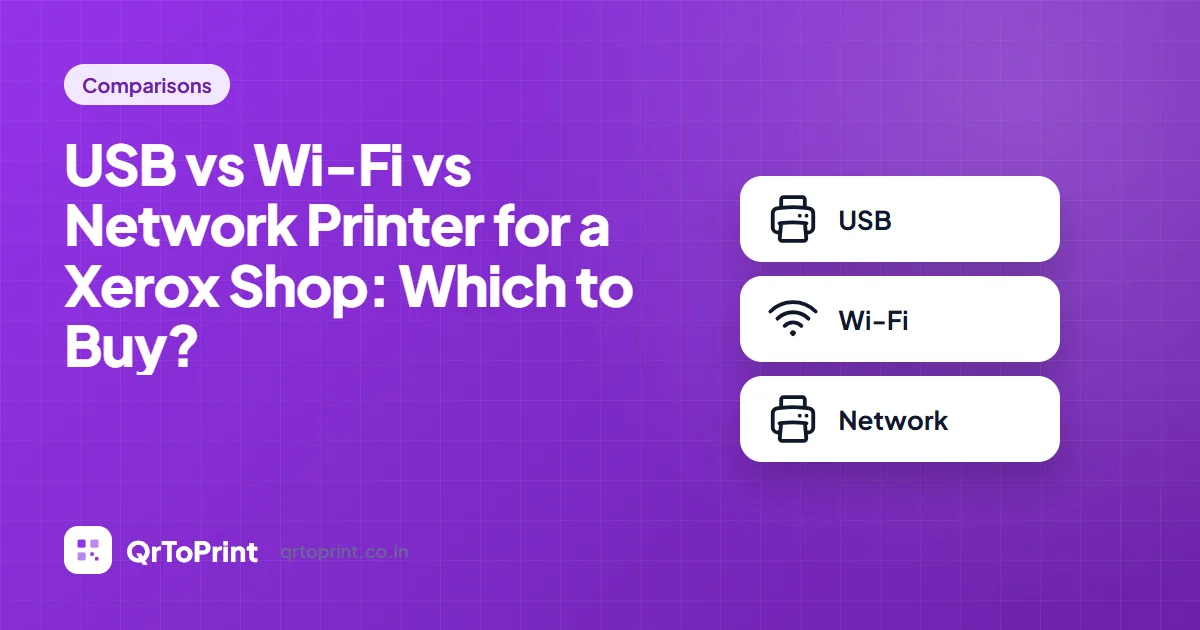
For a xerox shop with one computer, a USB printer is the simplest and most reliable choice. If two or more computers need to print to the same printer, choose a network (LAN / Ethernet) printer. Wi-Fi is convenient, but in a busy shop it is usually the least reliable connection. You don’t need to buy a new Wi-Fi printer just to let customers print from their phones.
Below we compare all three connection types the way a shop owner actually uses them: speed, daily reliability, sharing between PCs, setup effort and cost.
The three ways a printer connects
| Connection | How it connects | Best for |
|---|---|---|
| USB | A cable from the printer to one PC | Single-counter shops, one main PC |
| Network (LAN / Ethernet) | A network cable from the printer to your router or switch | Shops with 2+ PCs sharing one printer |
| Wi-Fi | Wireless connection to your router | Homes, small offices, places where you can’t run a cable |
Many printers support more than one of these. A typical office laser or multifunction printer often has USB and Ethernet; many ink tank printers have USB and Wi-Fi.
USB printer: simple and dependable
A USB printer talks to only one computer, directly through a cable. There is no router or IP address in between, so there is very little that can go wrong.
Pros
- Easiest setup — install the driver, plug in the cable, print a test page
- Very reliable; it keeps working even if the internet or Wi-Fi router is down
- No extra cost — every printer has a USB port
Cons
- Only the PC it is plugged into can print directly
- Cable length limits where the printer can sit (usually within 2–3 metres of the PC)
- If that PC is switched off, nobody else can use the printer
Best for: small xerox shops and cyber cafes where one main computer handles all printing.
Network (LAN) printer: best for sharing
A network printer is plugged into your router or switch with an Ethernet cable and gets its own address on the shop network. Any PC on the same network can print to it.
Pros
- Several computers can print to the same printer at the same time
- Stable — a wired connection doesn’t drop like Wi-Fi in a crowded area
- The printer doesn’t depend on one particular PC being switched on
- Good for heavy daily volume
Cons
- Needs a router or switch with a free port and a network cable
- Slightly more setup: you add the printer by its IP address on each PC
- Usually available on mid-range and office models, not the cheapest ones
Tip: give the printer a fixed IP address
Most “printer is offline” problems on network printers happen because the router gives the printer a new IP address after a power cut. Set a fixed (static) IP in the printer’s settings, or reserve its address in your router. Then the PCs always find it.
Best for: shops with two or more counters, cyber cafes where several PCs print, and busy xerox shops.
Wi-Fi printer: convenient, but watch out
A Wi-Fi printer connects to your router wirelessly. It is great at home, where nobody minds a 20-second delay.
Pros
- No cables — place the printer anywhere within router range
- Phones and laptops on the same Wi-Fi can find it
Cons
- Connection can drop with weak signal, many devices or interference
- Slower to start jobs, especially large PDFs
- Router restarts or power cuts often leave it “offline” until you reconnect
- Letting customers join your shop Wi-Fi to print is a security and privacy risk
Best for: home offices, or a printer that genuinely can’t be reached by cable. For a shop counter, wired (USB or LAN) is usually better.
Side-by-side comparison
| USB | Network (LAN) | Wi-Fi | |
|---|---|---|---|
| Reliability in a busy shop | Very high | Very high | Medium |
| Share between PCs | No (one PC) | Yes | Yes |
| Works without internet | Yes | Yes (local network) | Yes, if router is on |
| Setup effort | Easiest | Medium | Medium |
| Extra cost | None | Router port + cable | Usually none |
| Typical problem | PC switched off | IP address changed | Signal drops |
Which one should you buy?
One counter, one PC
Buy any good printer and connect it by USB. It is cheap, fast to set up and almost never fails. Spend your money on a better printer (low cost per page) rather than on Wi-Fi features.
Two or more PCs
Choose a printer with an Ethernet (LAN) port and connect it to your router. Every PC can then print to it. If you already own USB printers, keep them on the PC they are attached to — each PC can still print to its own USB printer.
B&W laser + colour ink tank
A common xerox shop setup is a B&W laser for documents and a colour ink tank for colour and photos. Both can be USB on the same PC, or one USB and one on the network. What matters is that both are installed on Windows and print a test page. For printer models and cost per page, see our guide to the best printer for a xerox shop.
Do you need a Wi-Fi printer for customers to print from their phones?
No. This is the most common myth. Customers don’t need to connect to your printer at all.
With QR printing software like QrToPrint, the customer scans your shop QR code, uploads PDFs or photos on a web page and pays by UPI or at the counter. The QrToPrint desktop app on your Windows PC receives the order and prints it on any printer installed on that PC — USB or network. Your printer never has to be on Wi-Fi, and customers never join your shop network.
- Any Windows printer works: HP, Canon, Epson, Brother, Ricoh, Kyocera and most xerox machines
- Several printers: routing rules send each paper size, B&W, colour and both-sides job to the printer you choose
- Several PCs: you can connect more than one computer, each with its own printers
See how it works or read the full feature list.
Setup checklist for a reliable shop printer
- Install the latest driver from the printer maker’s website
- Print a Windows test page from every PC that will use it
- For network printers, set a fixed IP address
- Set paper size defaults (A4, Legal) correctly in the driver
- Keep the printer on a UPS or stabiliser if your area has power cuts
- Keep spare toner or ink for exam-form and result-day rush
FAQ
Is a USB printer faster than a Wi-Fi printer?
For the same printer model, the pages come out at the same speed. But a USB or wired network connection usually starts jobs faster and doesn’t drop in the middle, so in practice it feels faster and is more dependable in a shop.
Can two computers use one USB printer?
Only if you share the printer from the PC it is plugged into, and that PC stays switched on. For two or more counters, a network (LAN) printer is simpler and more reliable.
Do I need a Wi-Fi printer for QR code printing?
No. With QrToPrint the customer uploads to your shop page and the desktop app on your Windows PC prints on any printer installed there — USB or network. Try the free 7-day demo.
Why does my network printer keep showing offline?
Usually because its IP address changed after a router restart. Give the printer a fixed IP address or reserve it in your router, then re-add the printer on each PC.