To handle exam-form and result-day rush, a cyber cafe needs three things: stock and printers ready before the rush, a clear queue system, and a way to separate quick print-only customers from slow form-filling work. Letting customers send print jobs from their own phone by scanning a QR code removes most of the crowd at the printing counter.
Sarkari form deadlines, admit card releases and board or university results bring the biggest crowds of the year. The same hours can bring your best income — or long queues, angry customers and mistakes. Here’s how to prepare.
Why rush days go wrong
Most rush-day problems come from mixing everything at one counter:
- One person fills a long online form while ten others wait for a single printout
- Customers send files on WhatsApp; you scroll, download, open and print each one
- Printer runs out of toner or paper in the middle of the rush
- Wrong copies, wrong pages, forgotten payments
- Customer documents pile up in your Downloads folder
Fix these before the rush, not during it.
Before the rush: preparation checklist
Watch the calendar. Exam notifications, admit card release dates and result dates are announced in advance. A week before:
| Task | Why |
|---|---|
| Stock 2–3 extra reams of A4 paper | Paper runs out first on result day |
| Keep a spare toner / ink refill | A dry printer stops everything |
| Clean and service printers | Jams waste time when the queue is longest |
| Test-print from every PC | Find driver problems early |
| Check internet backup (hotspot) | Results and admit cards need the internet |
| Set and display your rates | No bargaining at a crowded counter |
| Keep a UPS / power backup | Power cuts during forms lose work |
On the day: set up a simple queue system
Use tokens
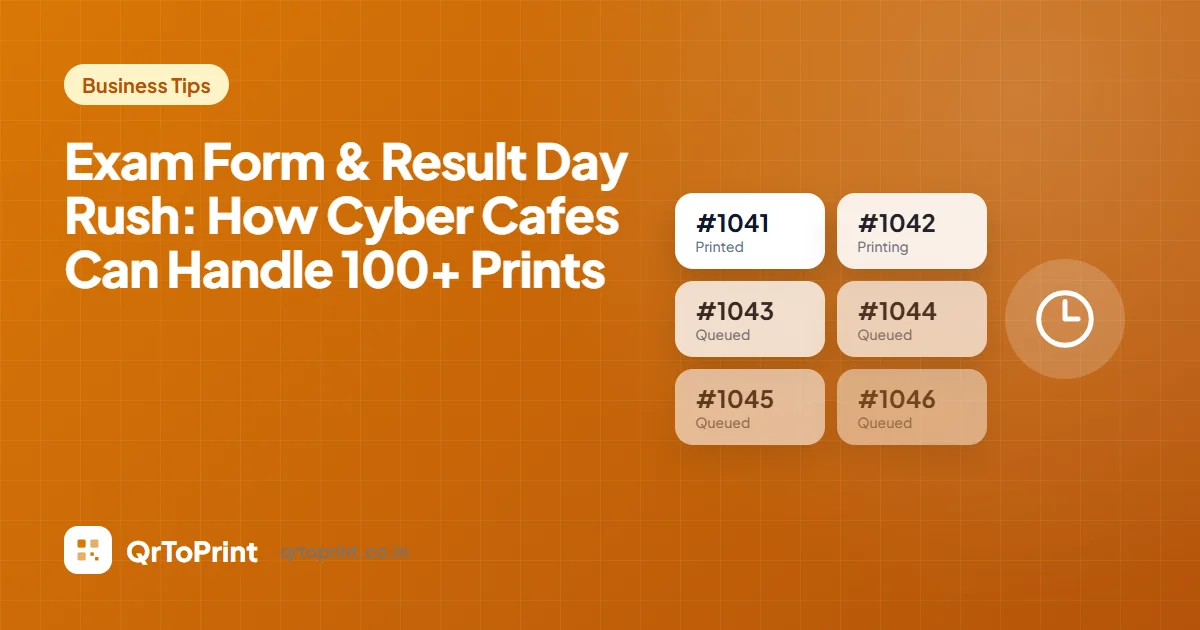
Give every customer a numbered token or write names in order. Call numbers clearly. People wait more patiently when they can see the order is fair.
Separate print-only from form-filling
This one change makes the biggest difference:
- Print counter — admit cards, results, forms already filled, ID copies. Fast, a minute or two each.
- Form-filling counter — online applications, corrections, photo/signature uploads. Slow, 10–30 minutes each.
If a print-only customer waits behind three form fills, they get frustrated and may walk to another shop. Even if you have only one staff member, keep printing jobs moving between form work.
Pre-set rates and payment
Decide your rates for printouts, form filling and photo uploads before the day. Display them. Ask for UPI payment so you don’t need to count change. See our guide on how to set per-page rates.
Keep a printed checklist for form work
Common mistakes on rush days: wrong photo size, missing signature, wrong exam centre, unpaid fee. A one-page checklist at the form counter helps staff and customers check before submitting.
Make printing self-service with a QR code
Most of the crowd on result day doesn’t need your computer — they already have the admit card or result PDF on their phone. They just need it printed.
With QR printing, these customers don’t need to stand at your counter at all:
- They scan your shop QR code — your upload page opens in the phone browser, no app or login
- They upload the PDF — and choose pages, copies, B&W or colour, one or both sides
- They see the exact price and pay — by UPI straight to your UPI ID, or choose pay at counter
- It prints automatically — orders print one by one on the right printer
- They collect with the order number — the order number is also the pickup code
Many customers can upload at the same time while you continue form work. You only hand over pages.
Useful settings for rush days in QrToPrint
- New-order alert — a pop-up and sound for every new order, so nothing is missed
- Pay at counter — cash orders wait as “Awaiting cash” and print when you tap Approve
- Location lock — only customers who are actually at your shop can order, so people far away don’t fill your queue
- Routing rules — B&W jobs go to the laser, colour to the ink tank, automatically
- Files deleted after printing — no admit cards or ID copies left on your PC
Read more about QrToPrint for cyber cafes or see how it works.
Staffing and timing tips
Open early, plan breaks
Results and admit cards are often released in the morning or late evening. Open earlier on announced dates and plan short breaks for staff in quieter hours, not in the first two hours after a release.
Give each person one job
If you have two people, one handles form-filling and the other handles printing, payment and handing over pages. Switching between both jobs is where most mistakes happen.
Keep a “ready for pickup” tray
Put finished prints in a tray sorted by token or order number. Customers collect without asking you to search through piles of paper.
Prepare for common requests
On result days many customers want the same few things: the result page, an admit card, a marksheet copy, or a photocopy of an ID. Keep the most-used websites bookmarked on the form-filling PC, and keep B&W printing as the default so colour isn’t used by mistake.
Don’t ignore regular customers
Your daily customers still come on rush days. A self-service QR order lets them place a quick print and pick it up without joining the long form-filling queue — they leave happy and come back.
After the rush
- Note which hours were busiest and plan staff for the next big date
- Refill paper and toner immediately
- Clear any customer files from your PC and phone (with QR printing they are deleted automatically)
- Check your earnings for the day in one place instead of counting slips
Quick rush-day checklist
- Paper, toner and spare refill ready
- Printers serviced and test-printed
- Internet backup ready
- Rates displayed, UPI QR visible
- Tokens or a name list for the queue
- Print-only and form-filling counters separated
- Shop QR poster up for self-service printing
FAQ
How can a cyber cafe print admit cards faster on result day?
Separate print-only customers from form-filling work, keep paper and toner stocked, and let customers upload their admit card PDF from their phone by scanning a QR code. Their jobs print automatically while you continue other work.
Can many customers upload at the same time?
Yes. With QrToPrint, many customers can scan the QR and place orders at once. Orders wait in the queue and print one by one, and each customer collects with their order number.
Can I stop people ordering from home during the rush?
Yes. Turn on location lock in QrToPrint so only customers at your shop can place an order. You can also switch your shop offline anytime.
Do customers need to pay before printing?
You choose. UPI payments go straight to your UPI ID, and pay-at-counter orders wait for you to take cash and tap Approve. Try it with the free 7-day demo before the next big result day.