The fastest way to print from your phone at a xerox shop is to scan the shop’s QR code and upload your file directly — no WhatsApp, no email, no pen drive. If the shop doesn’t have a QR, you can still send the file by email or WhatsApp, but each of those has downsides for your privacy and time. Here is how each option works and which one to choose.
Option 1: Send the file on WhatsApp
The most common way today. You ask for the shop’s number and send the PDF or photo.
Good: everyone knows how to do it.
Not so good:
- Your document sits in the shopkeeper’s phone and chat history.
- Photos sent as “photo” get compressed — use “document” to keep quality.
- In a rush, files from different customers get mixed up.
- You still have to tell pages, copies and colour by voice.
Tip: If you must use WhatsApp, send the file as a document, not a photo, and ask the shopkeeper to delete it after printing.
Option 2: Email the file
Some shops share an email ID for printing.
Good: keeps original quality, works for big PDFs.
Not so good: slower, and your file stays in the shop’s inbox.
Option 3: Bring a pen drive or cable
Good: no internet needed.
Not so good: pen drives spread viruses, cables don’t fit every phone, and many shops refuse unknown pen drives now.
Option 4: Scan the shop’s QR code (best)
More shops now have a “scan to print” QR poster on the counter — sometimes called QR se print or scan-and-print. The steps are the same in most shops:
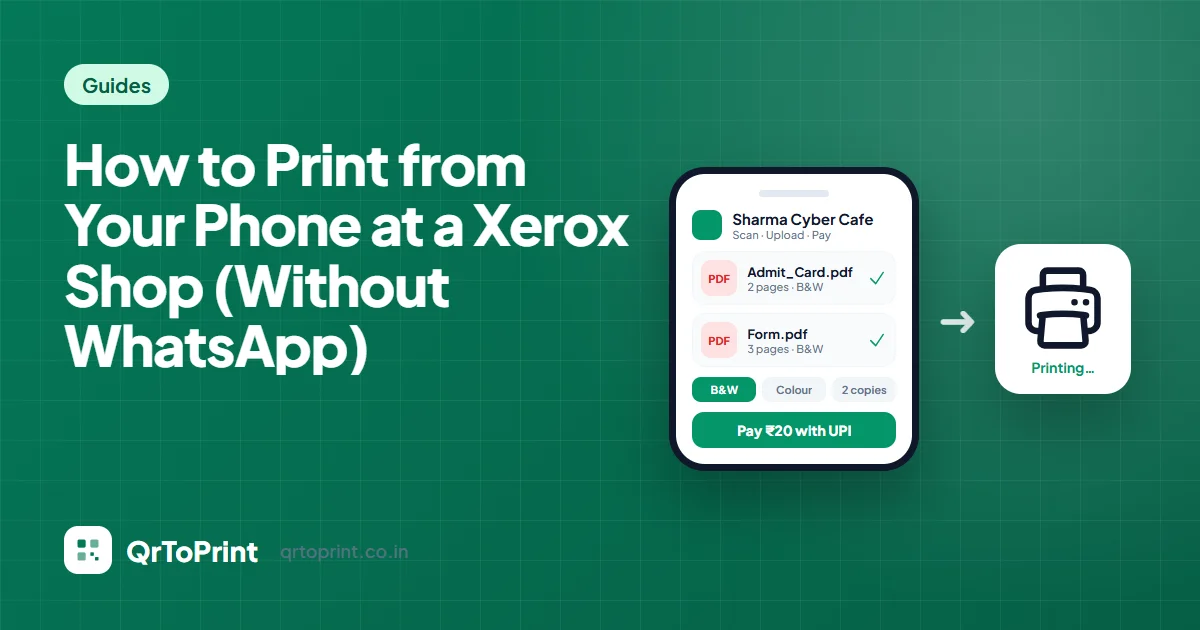
- Open your phone camera and point it at the shop’s QR code.
- Tap the link that appears. The shop’s upload page opens in your browser — no app to install, no login.
- Upload your files — PDFs or photos. You can usually add several files in one order.
- Choose print options — paper size, B&W or colour, one side or both sides, number of copies, and which pages to print (for example “1-3, 5”).
- Check the price shown on the screen.
- Pay by UPI from any UPI app, or choose pay at the counter if the shop allows it.
- Tell the shopkeeper your order number and collect your prints.
The whole thing usually takes under a minute.
Why the QR method is better
| QR scan | ||
|---|---|---|
| Share your phone number | Yes | No |
| File stays in shop’s phone | Yes | Usually deleted after printing |
| Choose pages and copies yourself | No, by voice | Yes, on screen |
| See the price before paying | Not always | Yes |
| Wait in a queue to explain | Yes | No |
How to prepare your file before printing
A little preparation saves a wrong print:
- Download the PDF first. Admit cards and results often open in the browser — save them to your phone.
- Check page numbers. Long PDFs? Note which pages you need, like “2-4”.
- Rename clearly. “Exam_Form.pdf” is easier than “download (3).pdf”.
- Photos straight and bright. Take document photos in good light, flat on a table.
- Password-protected PDFs. Some PDFs, like e-Aadhaar, need a password to open. Keep it ready — see our guide on printing Aadhaar, PAN and Voter ID.
Common questions at the counter
“Mera print colour mein aayega?” — choose Colour in the options if the shop offers it; colour costs more per page.
“Dono side print ho sakta hai?” — choose both sides if the shop offers it. It saves paper for notes and long documents.
“Photo chhota karke ek page pe 4 aa sakte hain?” — many QR print pages let you put several photos on one page (like 4 or 6 per page), useful for passport-size photos.
Android vs iPhone: anything different?
The QR method works the same on both, because it runs in the browser:
- Android: open the camera, or Google Lens if your camera doesn’t read QR codes. Files are usually in Downloads or inside the app that saved them (WhatsApp, Gmail, DigiLocker).
- iPhone: the default camera reads QR codes. Saved PDFs are in the Files app — tap Browse to find Downloads or iCloud Drive.
If the upload button doesn’t show your file, check that it is a PDF or an image (JPG, PNG). Word files may need to be saved as PDF first — most phones can do this from the share menu with “Print” → “Save as PDF”.
Tips to get your print faster in a rush
Result day, admit card day or the last date of a form — shops get crowded. A few tricks:
- Upload before you reach the counter. If the shop’s QR link is shared on a WhatsApp group or the poster is at the door, place the order while standing in line.
- Combine files into one order. Several PDFs in one order means one payment and one order number.
- Choose only the pages you need. Printing 2 pages of a 40-page notice is faster and cheaper.
- Keep your order number visible. Say it clearly at the counter — it is your pickup code.
- Go for B&W when colour isn’t needed. Forms and notes rarely need colour, and the B&W printer is usually faster.
Is it safe to upload documents to a shop’s QR page?
Look for these signs:
- The page opens with
https://(a lock icon). - It shows the shop’s name.
- The shop tells you files are deleted after printing.
On shops using QrToPrint, files are uploaded over an encrypted connection and deleted after printing or cancelling.
For shop owners: offer QR printing
If you run a xerox shop or cyber cafe, a QR poster lets customers print from their phone without WhatsApp. QrToPrint works with the printers you already have, and UPI payments go straight to your own UPI ID with 0% commission. Start with the free 7-day demo — register your shop or read how it works.
FAQ
Do I need an app to print from my phone at a shop?
No. With the QR method, the upload page opens in your phone browser after scanning. No app or login is needed.
Can I print only some pages of a PDF from my phone?
Yes. On a QR print page you enter a page range like “1-3, 5”, and only those pages print.
How do I pay when printing from my phone?
Usually by UPI from any UPI app, straight to the shop. Many shops also allow pay at counter in cash.
What if the shop doesn’t have a QR code?
Send your file as a WhatsApp document or by email, tell the shopkeeper the pages and copies clearly, and ask them to delete the file after printing.