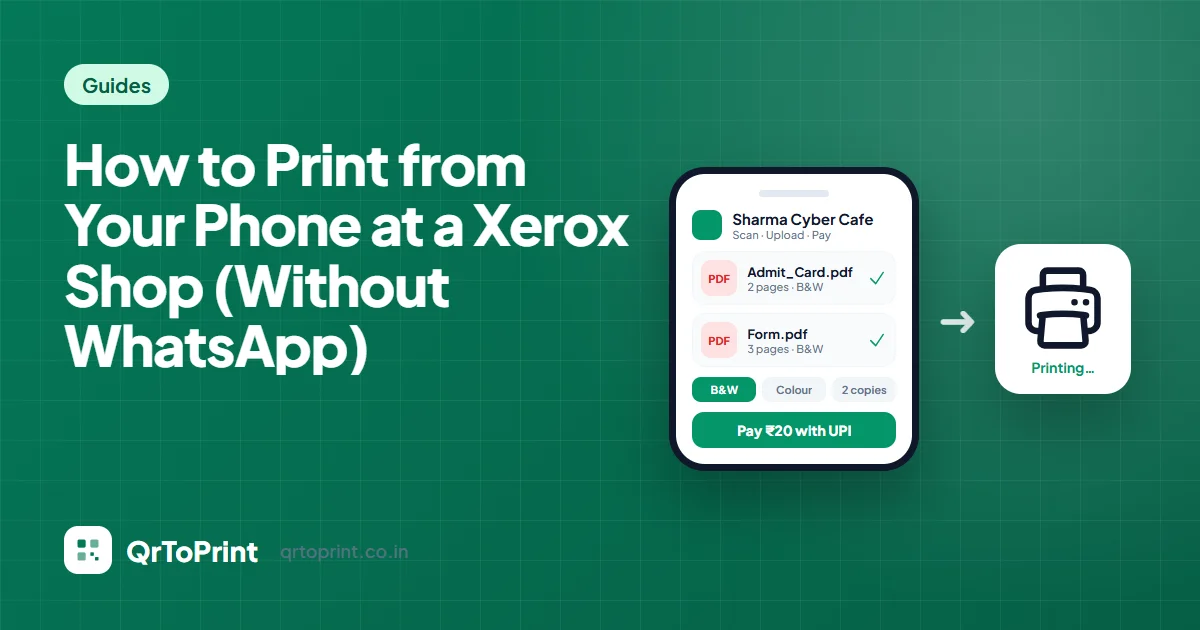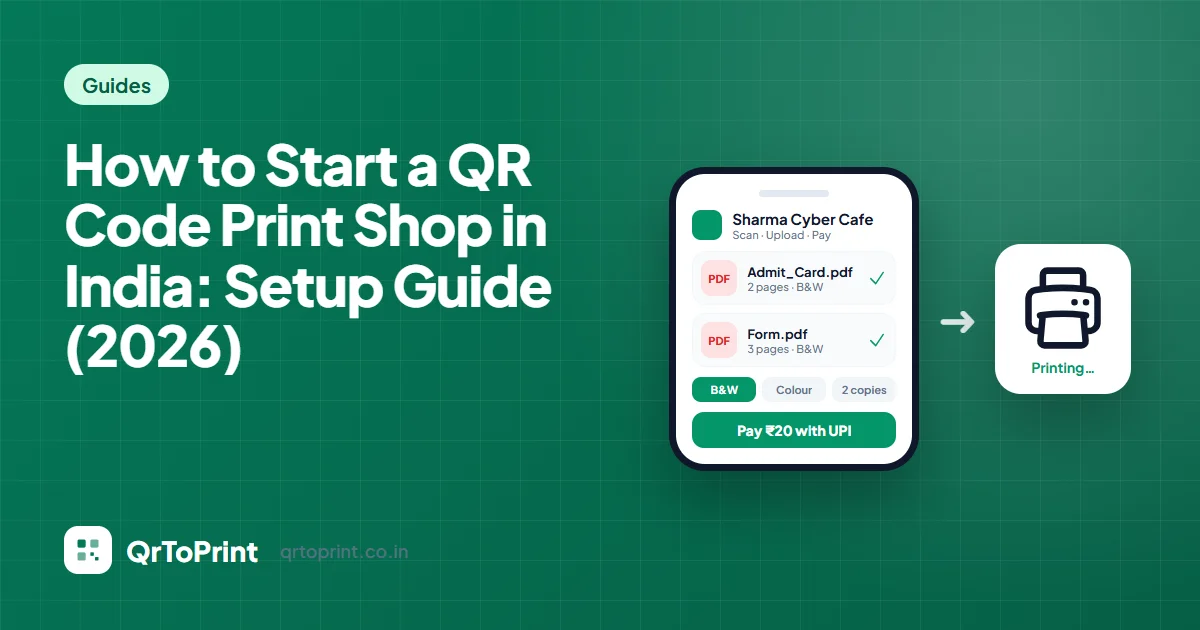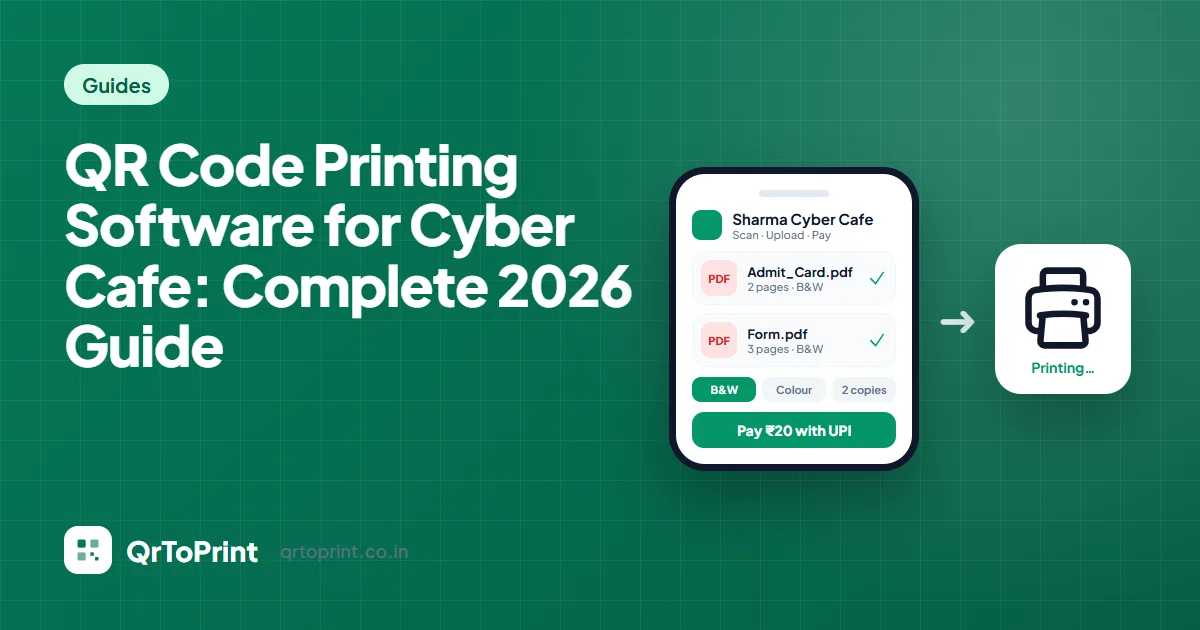
QR code printing software lets your customer scan a QR code at your counter, upload files from their own phone, pay by UPI or at the counter, and the print comes out automatically on your shop’s printer. No WhatsApp, no pen drive, no typing file names. People also search for it as “QR se print” or “scan and print” software.
For a busy cyber cafe, that means fewer mistakes, shorter lines and much better privacy for customers. This guide explains how it works, which features matter, and how to set it up.
Why cyber cafes are moving away from WhatsApp and pen drives
Most cyber cafes in India still receive files in one of three ways:
- WhatsApp — customer sends a file to the shop number, staff downloads it and prints.
- Pen drive — customer plugs a USB drive into the shop computer.
- Email — customer mails the file, staff logs in and downloads.
All three work, but they cause daily problems:
- The shop phone fills up with strangers’ documents.
- Pen drives bring viruses and shortcut malware.
- Staff asks “How many copies? Colour or black-and-white?” again and again.
- Aadhaar cards, marksheets and bank statements stay on the shop computer long after the customer leaves.
- During exam form season the line at the counter becomes unmanageable.
QR printing fixes this by letting the customer do the “input” part themselves. If you are looking for a WhatsApp se print alternative, read our WhatsApp vs QR printing comparison.
How QR code printing works (step by step)
Here is the flow in a shop using QrToPrint:
- Customer scans the QR — your QR poster is on the counter or wall. The phone camera opens your shop page in the browser. No app, no login.
- Customer uploads files — up to 10 PDFs, or up to 10 photos (JPG, PNG, WEBP), in one order.
- Customer chooses settings — paper size, B&W or colour, one or both sides, copies, page range (like “1-3, 5”) and, for photos, how many photos per page.
- Customer sees the price — the exact amount, with any bulk discount, before paying.
- Customer pays — by UPI straight to your UPI ID, or chooses “Pay at counter”.
- Print comes out automatically — the QrToPrint desktop app on your Windows PC receives the order and sends it to the right printer.
- File is deleted — after printing, the customer’s file is removed.
The customer gets an order number, which is also the pickup code they tell you at the counter. For screens and details, see how it works.
Key features to look for
Not every print automation tool is the same. Check these points before choosing one.
Works with your existing printer
You should not need a new Wi-Fi printer. Good software works with any printer already installed on Windows — HP, Canon, Epson, Brother or a multifunction xerox machine, connected by USB or network.
Printer routing (B&W, colour, paper size)
If you have one B&W laser and one colour ink tank, B&W jobs should go to the laser and colour jobs to the ink tank automatically. The same goes for paper sizes and two-sided printing.
Multiple files in one order
Students often bring 5–10 documents at once. The customer should be able to upload them together and pay once.
Payments with zero commission
UPI payments should go straight to your own UPI ID, not into the software company’s wallet. Also check whether a commission is charged per job — ideally it should be zero. QrToPrint takes 0% and never touches your customers’ money.
Approve before printing when you want
Some orders need a quick check. You should be able to choose, per payment option, whether orders print automatically or wait for you to accept them (for example, cash orders that print only after the customer pays).
Automatic file deletion
This is the biggest trust factor. Files should be deleted after printing. Read our guide on customer document privacy to see why it matters.
Orders wait safely if the internet drops
Internet in many towns is not always stable. Orders should wait in the queue and print once the shop PC is back online.
Setup: what you need
Setting up QR printing in a cyber cafe takes about 10–15 minutes:
- A Windows computer that stays on during shop hours
- At least one printer installed on that computer
- A stable internet connection (a mobile hotspot also works)
- Your UPI ID, if you want online payments
Then you set your per-page rates, choose which printer handles which job, and print your QR poster from the dashboard.
How much does it cost?
Pricing models differ between providers:
- Monthly subscription — small fee every month.
- Yearly plan — pay once a year.
- Per-print commission — a cut on every job, which adds up quickly in a busy shop.
QrToPrint has a free 7-day demo with 50 print orders, then yearly plans that differ only in how many print orders they include. Every plan has every feature. If your shop does even 15 prints a day at ₹5, that is more than ₹2,000 a month — a yearly plan pays for itself in days. Compare plans on our pricing page.
Tips for a smooth launch
- Put the QR at eye level near the counter with a line like “Scan, send your file, collect your print”.
- Show your rates on the same poster so customers are not confused.
- Keep “Pay at counter” on in the first weeks for customers who prefer cash.
- Check UPI payments in your UPI app before handing over prints.
- Tell regular customers — college students and job applicants spread the word fast.
FAQ
Do customers need to install an app?
No. Scanning the QR opens a normal web page in the phone browser. There is no login or app download.
Will it work if my printer is not Wi-Fi enabled?
Yes. The software prints through Windows, so any USB or network printer that prints from your PC will work.
Who receives the customer’s payment?
You do. UPI payments go straight to your own UPI ID, and cash is paid at your counter. QrToPrint charges 0% commission.
Is my customers’ data safe?
Files are uploaded over an encrypted connection and deleted after printing. Your dashboard shows order details, not file contents.
Get started
QR printing is one of the simplest upgrades a cyber cafe can make in 2026 — less staff effort, faster service and happier customers. See the cyber cafe solution, explore all features, or start the free demo today.