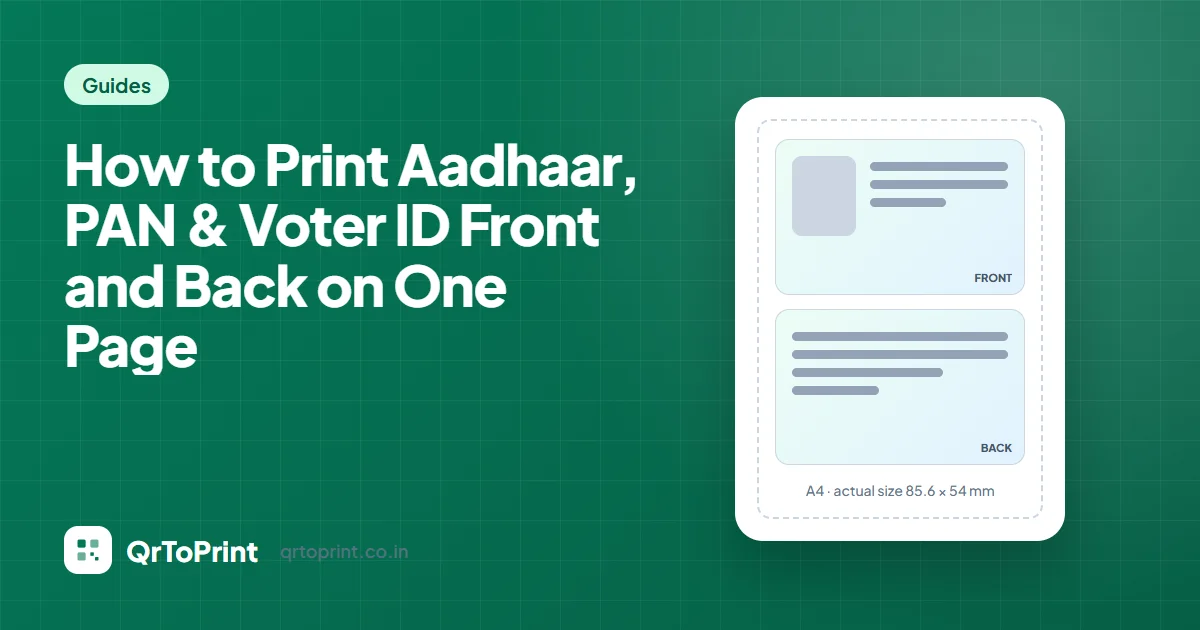
To print an ID card front and back on one page, place both sides on an A4 sheet at the real card size of 85.6 × 54 mm and print at 100% (actual size) — never “fit to page”. That is the standard size for Aadhaar, PAN, Voter ID and most other Indian ID cards. Get the scale right and the print matches the original card.
This guide is for xerox shop and CSC center owners who print ID copies every day.
The correct ID card size
Almost all wallet-size ID cards follow the international ID-1 size:
| Measurement | Size |
|---|---|
| Width | 85.6 mm (about 3.37 inches) |
| Height | 54 mm (about 2.13 inches) |
| Corner radius | about 3 mm |
Aadhaar (PVC and the cut-out from e-Aadhaar), PAN, the new Voter ID (EPIC) and driving licence cards are all close to this size. If your print measures more or less with a ruler, your scaling is wrong.
Step 1: Get a clean source file
The best result comes from a digital original, not a photo of a card.
- Aadhaar — the customer can download e-Aadhaar from the official UIDAI website or the mAadhaar app. A masked Aadhaar shows only the last 4 digits of the number and is often enough for KYC copies — suggest it when the full number isn’t needed.
- PAN — e-PAN PDFs are available from the PAN service providers.
- Voter ID — e-EPIC can be downloaded from the voters’ service portal.
If the customer only has the physical card, scan both sides on a flatbed scanner at 300 dpi instead of taking a phone photo. Phone photos are often tilted and shadowed.
e-Aadhaar PDF password
The e-Aadhaar PDF is password-protected. The password is the first 4 letters of the name in CAPITAL letters followed by the year of birth (YYYY). For example, for “Rahul Kumar” born in 1998 it is RAHU1998. Ask the customer to type it — don’t save it anywhere.
Step 2: Lay out both sides on one A4 page
You can do this in any image or document editor:
- Create an A4 page (210 × 297 mm) at 300 dpi.
- Crop the front of the card exactly to its edges.
- Resize it to 85.6 × 54 mm. Lock the aspect ratio.
- Do the same for the back.
- Place the front at the top and the back just below, with about 10 mm gap.
- Add thin light-grey lines around each side if the customer will cut them out.
For an e-Aadhaar PDF, the front and back are already printed side by side on the lower part of the page, ready to cut — you can print the page as it is.
Several cards on one page
Families often need Aadhaar copies for 3–4 members. An A4 sheet fits four front-and-back pairs comfortably (two columns, two rows). This saves paper and the customer gets everything on one sheet.
Step 3: Print at actual size
This is where most wrong prints happen.
- In the print dialog choose Actual size, 100% or No scaling.
- Turn off Fit to page / Shrink oversized pages.
- Choose paper size A4 in both the app and the printer settings.
- Print a test copy and measure the card with a ruler: it should be 85.6 mm wide.
Paper vs PVC: what to offer
| Option | Use | Notes |
|---|---|---|
| Plain paper (75–80 GSM) | Xerox copies for forms and KYC | Cheapest, most common |
| Photo or glossy paper | Better-looking copy | Colour printer recommended |
| Laminated paper copy | Copy that lasts longer | Laminate after cutting |
| PVC card | Wallet card | Needs a PVC card printer or a supplier; check what is allowed for each document |
Official PVC Aadhaar cards can be ordered by the cardholder from UIDAI. Be careful about promising “original” cards — a print from your shop is a copy, and customers should know that.
Privacy: delete ID files after printing
ID documents are some of the most sensitive files a shop handles. Good habits:
- Don’t keep Aadhaar, PAN or Voter ID files on the shop PC after printing.
- Don’t receive them on your personal WhatsApp if you can avoid it.
- Empty the Downloads folder and Recycle Bin daily.
- Never share or reuse a customer’s ID copy.
If customers upload through a QR printing service like QrToPrint, they send the PDF or photos from their phone by scanning your shop QR, and the files are deleted after printing or cancelling — they don’t stay on your computer. Read our customer document privacy guide for more.
Troubleshooting ID card prints
| Problem | Likely cause | Fix |
|---|---|---|
| Card prints too large | “Fit to page” is on | Print at 100% / actual size |
| Card prints too small | PDF has big margins and scaling is on | Turn off “shrink to fit”, crop the card image first |
| Text is blurry | Low-resolution phone photo | Use the e-Aadhaar / e-PAN PDF or a 300 dpi scan |
| Back side is upside down | Back image rotated when cropping | Rotate the back 180° before placing it |
| Colours look dull | B&W printer or “draft” mode | Use the colour printer and “normal” or “high” quality |
| PDF won’t open | Password-protected e-Aadhaar | Ask the customer for the password (4 letters + year of birth) |
ID printing during exam and scheme season
ID copies spike when exam forms, scholarship applications, ration card updates and bank KYC deadlines arrive together. A few things help on rush days:
- Keep a ready template. Save an empty A4 layout with two 85.6 × 54 mm boxes so you only drop in the images.
- Ask for the PDF, not a photo. Tell customers in the queue to download e-Aadhaar or e-PAN on their phone before they reach the counter.
- Let customers upload themselves. When customers send files by scanning your shop QR, you don’t have to receive them on WhatsApp, and they choose copies and colour themselves.
- Batch similar jobs. Print all B&W ID copies together and colour ones together to avoid switching settings.
- Clear files every evening. Busy days leave the most sensitive files behind.
Quick checklist for every ID print
- Clean source: e-Aadhaar / e-PAN / e-EPIC PDF or a flatbed scan
- Both sides at 85.6 × 54 mm
- Printed at 100% / actual size on A4
- Measured with a ruler on the first copy
- Cutting lines added if needed
- File deleted after printing
CSC centers handle these prints all season — see how QR printing helps on the CSC center page.
FAQ
What is the correct size to print an Aadhaar card?
85.6 × 54 mm, the standard ID-1 card size. Print at 100% or “actual size” so the printer doesn’t scale it.
What is the password for an e-Aadhaar PDF?
The first 4 letters of the name in capital letters followed by the year of birth, for example RAHU1998.
Why does my ID card print come out too big or too small?
Usually because “Fit to page” or a scaling option is on. Choose actual size / 100% and set A4 paper in both the app and the printer settings.
Is it safe to keep customers’ ID files for next time?
No. Delete them after printing. Keeping copies of Aadhaar or PAN without a reason risks misuse and loses customer trust.